> For the complete documentation index, see [llms.txt](https://awecommerce.gitbook.io/awe-color-swatches/llms.txt). Markdown versions of documentation pages are available by appending `.md` to page URLs; this page is available as [Markdown](https://awecommerce.gitbook.io/awe-color-swatches/getting-started/variant-images/statuses-and-turning-it-on.md).
# Statuses & turning it on
What each variant-image status means and how to switch a product on.
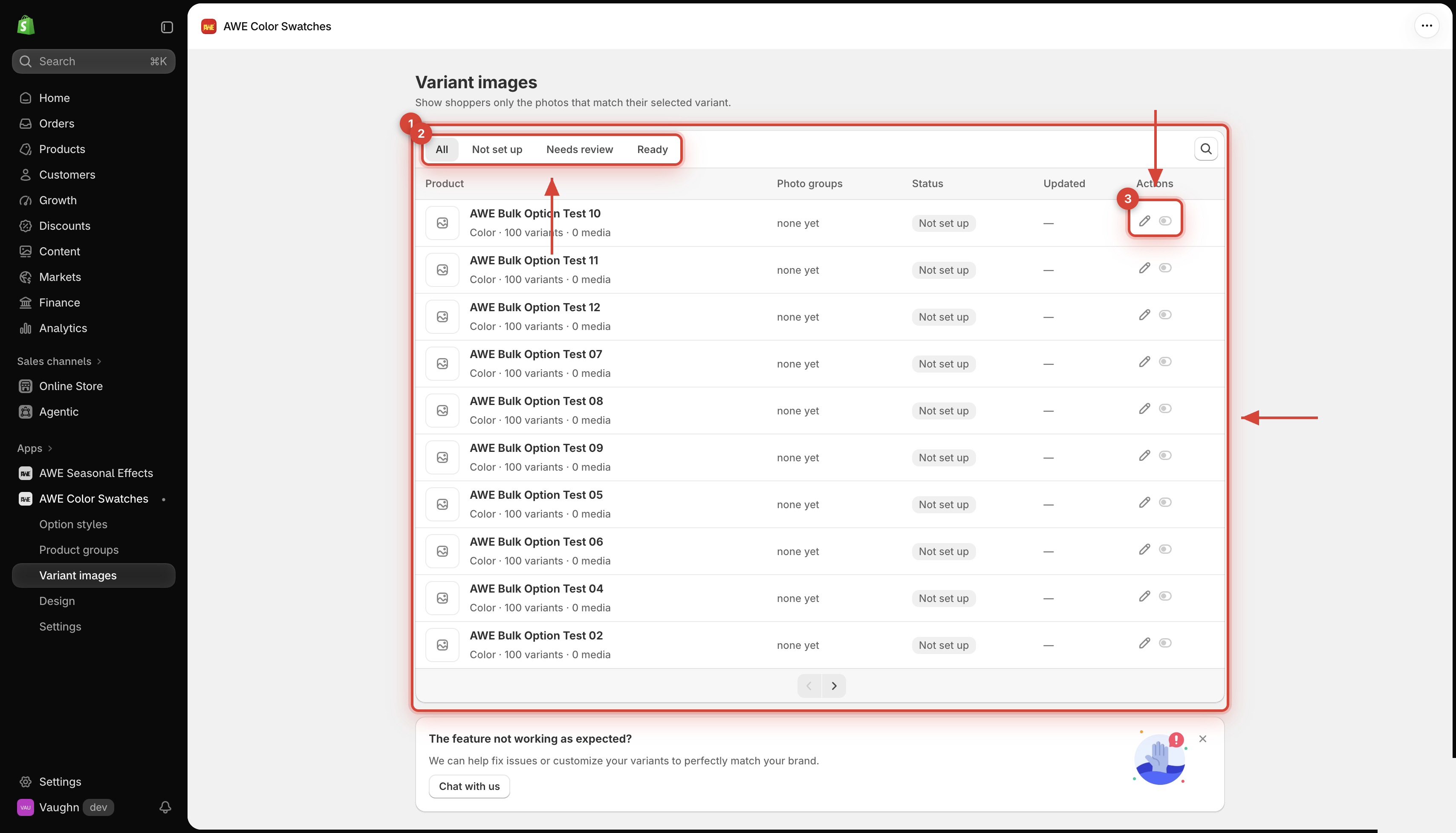
Each product in **Variant images** has a status and an on/off switch.
***
## 1. **Statuses**
Live
Set up and switched on — shoppers see only the matching photos.
Ready · off
Set up, but switched off — the store shows every photo as usual.
Needs review
The product's photos changed in Shopify after you set it up. Open it, check the groups and click Save.
1. Product list. 2. Status filters. 3. Edit and App status actions.
## 2. **Turn a product on or off**
* In the list, use the switch in **Actions** — it applies right away.
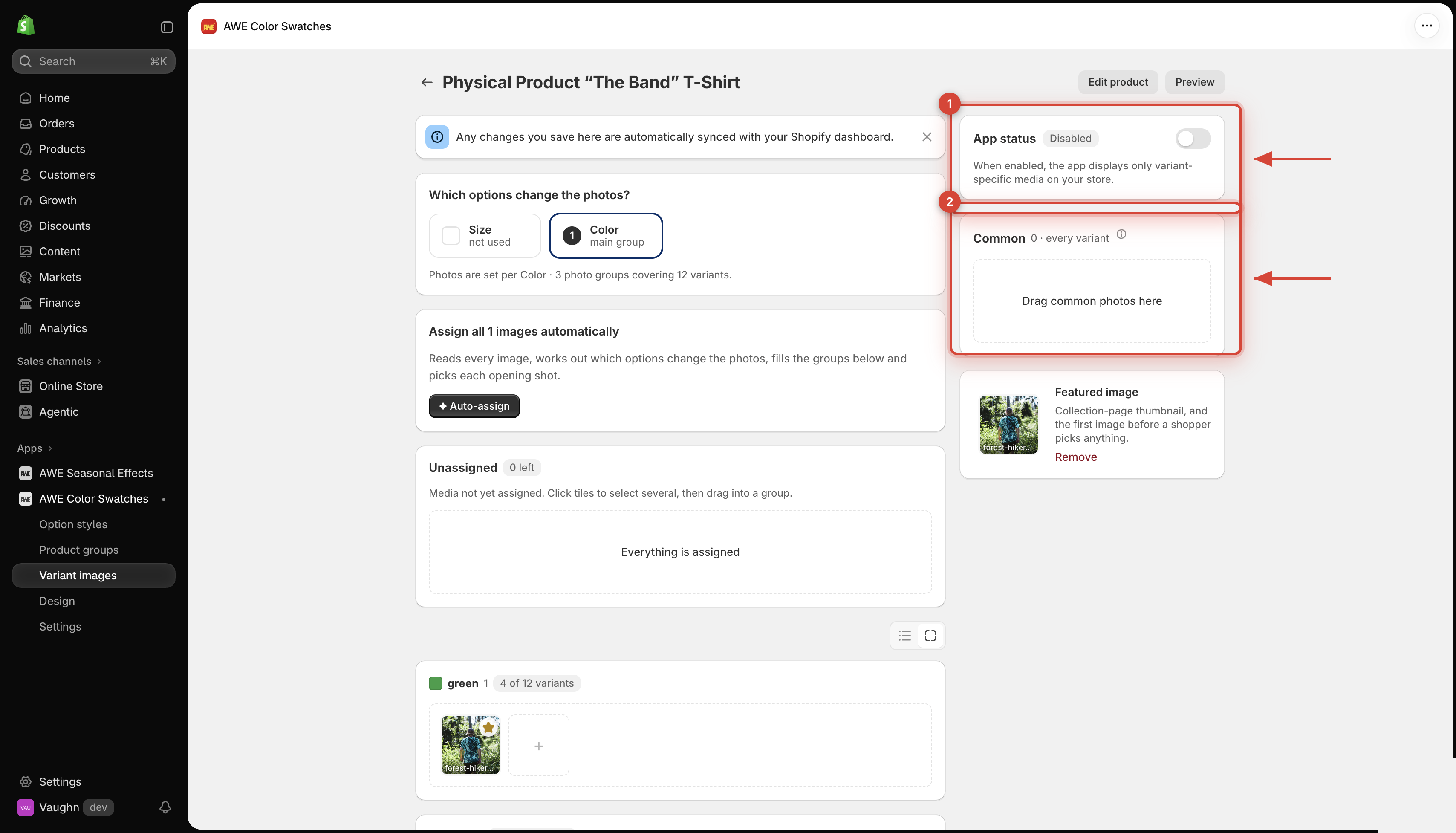
* Or open the product, switch **App status**, and click **Save**.
Products that are **Not set up** can't be switched on yet.
1. App status switch. 2. Common photos shown for every variant.
## 3. **On your store**
* Variant images works on the **product page** gallery.
* When a shopper picks a value — with your theme's picker or AWE swatches — the gallery shows that value's photos, then the **Common** photos.
* If the app can't read your theme's gallery, the gallery is left exactly as it is.
{% hint style="info" %}
Variant images needs the **AWE Combined Listings Swatch** app embed. See [Enable the app embed](/awe-color-swatches/getting-started/enable-app-embed.md).
{% endhint %}
***
💬 If you have any related questions, please contact us via **Live chat** in the app.