> For the complete documentation index, see [llms.txt](https://awecommerce.gitbook.io/awe-color-swatches/llms.txt). Markdown versions of documentation pages are available by appending `.md` to page URLs; this page is available as [Markdown](https://awecommerce.gitbook.io/awe-color-swatches/getting-started/variant-images/auto-assign-photos.md).

# ✦ Auto-assign photos

Let the app sort your product photos into variant groups for you.

**Auto-assign** reads your product photos and sorts them into photo groups for you — for one product, or for all new products at once.

***

## 1. **For all new products**

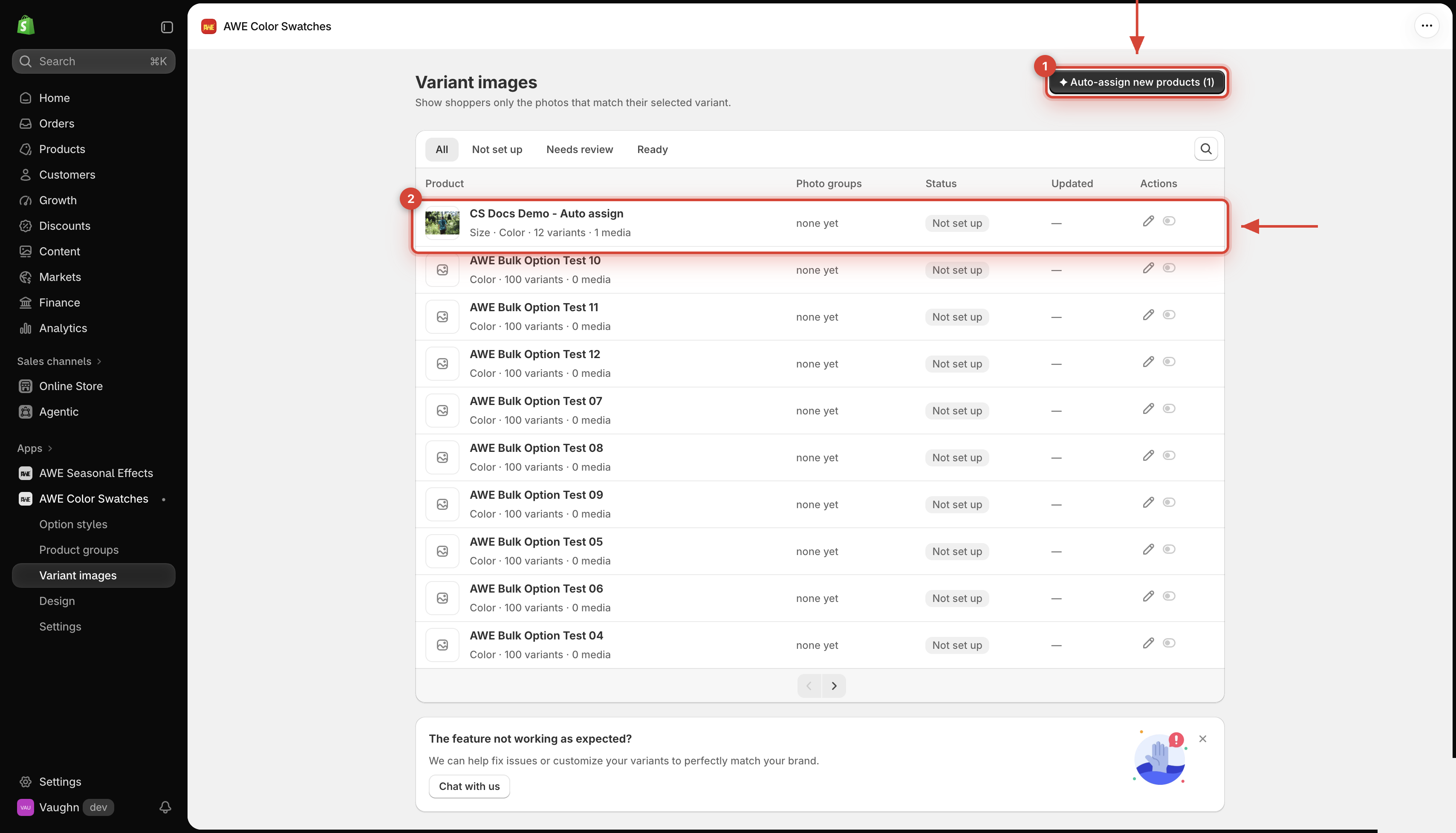
On the **Variant images** page, click **✦ Auto-assign new products (N)**. It runs for every product that's **Not set up** and has photos. The list updates by itself as products finish.

<figure><img src="https://1584372634-files.gitbook.io/~/files/v0/b/gitbook-x-prod.appspot.com/o/spaces%2FQtSZ9l9Z5zXeyqTQcvze%2Fuploads%2Fgit-blob-d8d7872af35346b9564cb1e7d505dbd783bef10f%2Fvariant-images-02-auto-assign-button.png?alt=media" alt="Auto-assign new products button"><figcaption><p>1. Start Auto-assign for all eligible products. 2. An eligible Not set up product with media.</p></figcaption></figure>

→ ***N** counts only **Not set up** products that have at least one image. Products with **0 media** aren't included.*

## 2. **For one product**

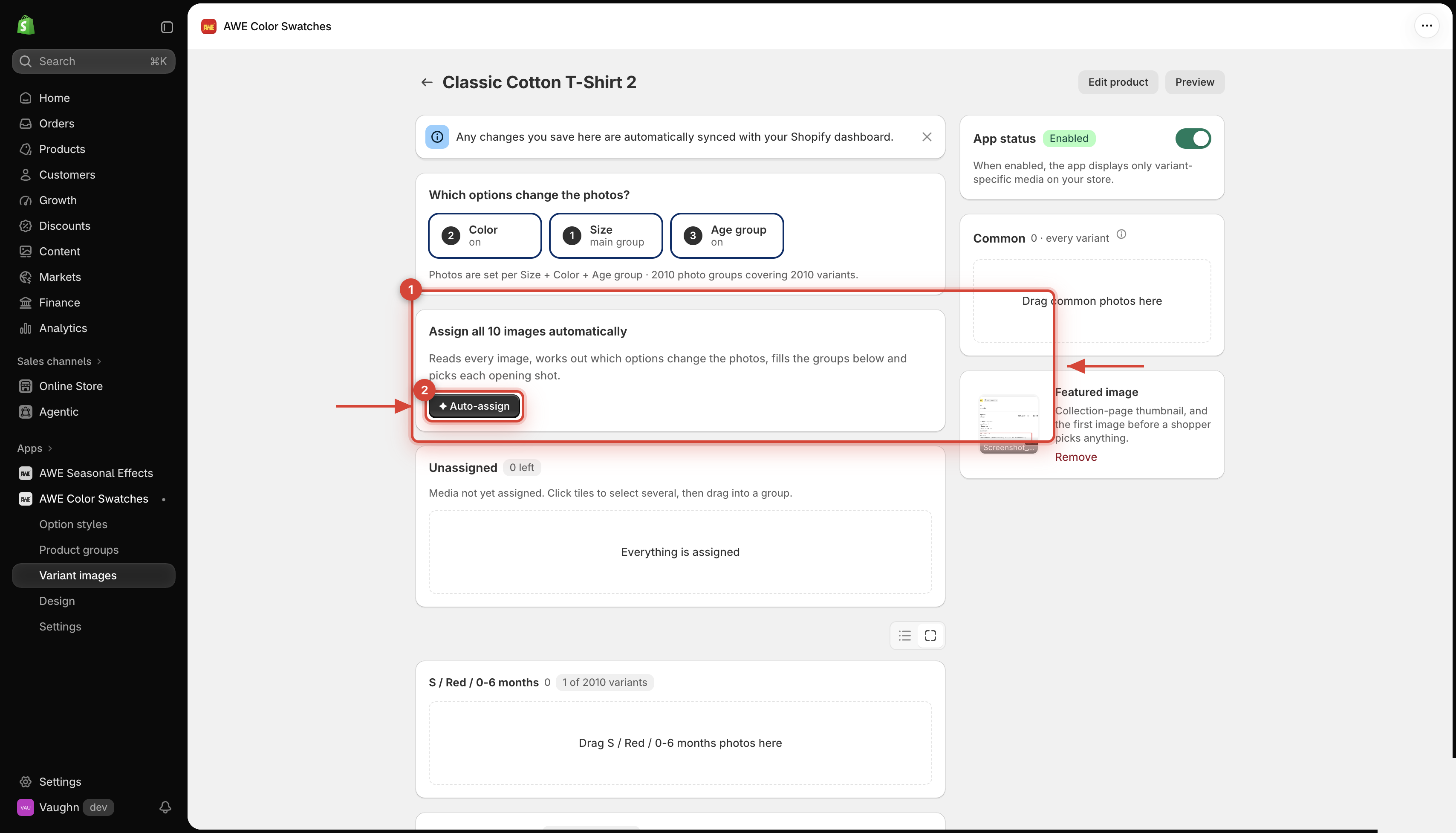
Open a product, then click **✦ Auto-assign** in **Assign all N images automatically**. When it's done, check the groups and click **Save**.

<figure><img src="https://1584372634-files.gitbook.io/~/files/v0/b/gitbook-x-prod.appspot.com/o/spaces%2FQtSZ9l9Z5zXeyqTQcvze%2Fuploads%2Fgit-blob-f8e39b6dba6bc9b2a31e694a5dc3c4c7f43e9b43%2Fvariant-images-edit-02-auto-assign.png?alt=media" alt="Assign all images automatically"><figcaption><p>1. Automatic assignment panel. 2. Run Auto-assign for this product.</p></figcaption></figure>

{% hint style="warning" %}
Auto-assign sets products up but leaves them **switched off**. Check the result, then turn each product on. See [Statuses & turning it on](/awe-color-swatches/getting-started/variant-images/statuses-and-turning-it-on.md).
{% endhint %}

## 3. **How it decides**

* It matches each photo's **file name** and **alt text** with your option values — it understands common names like navy, blk or gray.
* It uses the variant images already set in Shopify as a hint.
* It looks at the colors in the photos (up to 40 per product).
* Photos named like size, guide, chart, packaging, box, care or logo go to **Common**.
* If no option changes the photos, everything goes to **Common**, so shoppers see every photo.

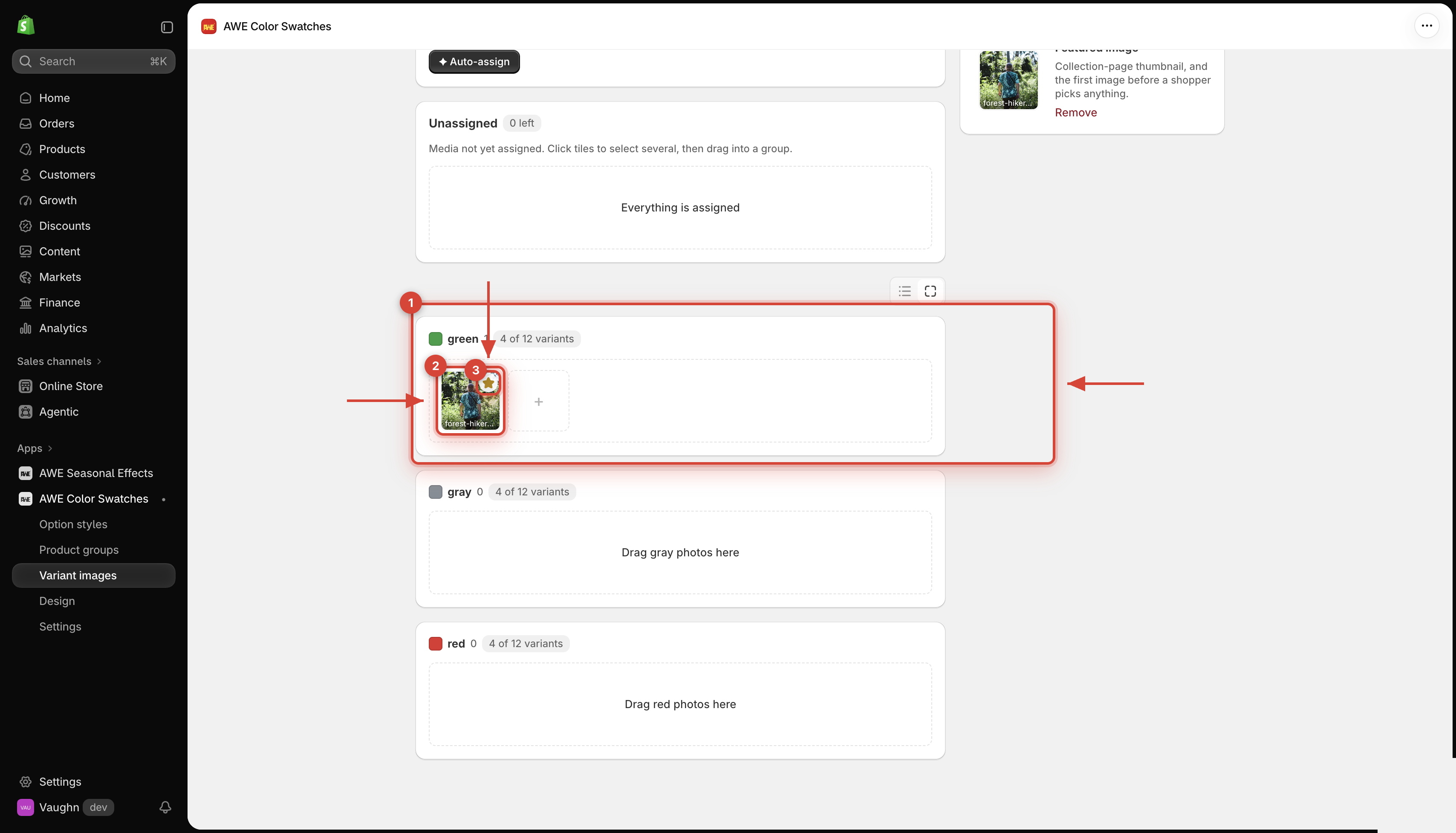
<figure><img src="https://1584372634-files.gitbook.io/~/files/v0/b/gitbook-x-prod.appspot.com/o/spaces%2FQtSZ9l9Z5zXeyqTQcvze%2Fuploads%2Fgit-blob-e14090fb02bd1c1fba8594d8dac653ccff16a781%2Fvariant-images-edit-05-after-auto-assign.png?alt=media" alt="Photos sorted into color groups after Auto-assign"><figcaption><p>1. Assigned photo group. 2. Assigned photo. 3. Opening-shot star.</p></figcaption></figure>

→ *Name your photos or write alt text with the color, e.g. `tee-navy-front.jpg` — auto-assign gets much more accurate.*

***

💬 If you have any related questions, please contact us via **Live chat** in the app.