> For the complete documentation index, see [llms.txt](https://awecommerce.gitbook.io/awe-color-swatches/llms.txt). Markdown versions of documentation pages are available by appending `.md` to page URLs; this page is available as [Markdown](https://awecommerce.gitbook.io/awe-color-swatches/getting-started/variant-images/set-up-a-product.md).
# Set up a product
Sort a product's photos into variant groups by hand.
Open a product in **Variant images** (click its row or the pencil icon) to sort its photos yourself.
## 🛠️ Steps
{% stepper %}
{% step %}
### Choose which options change the photos
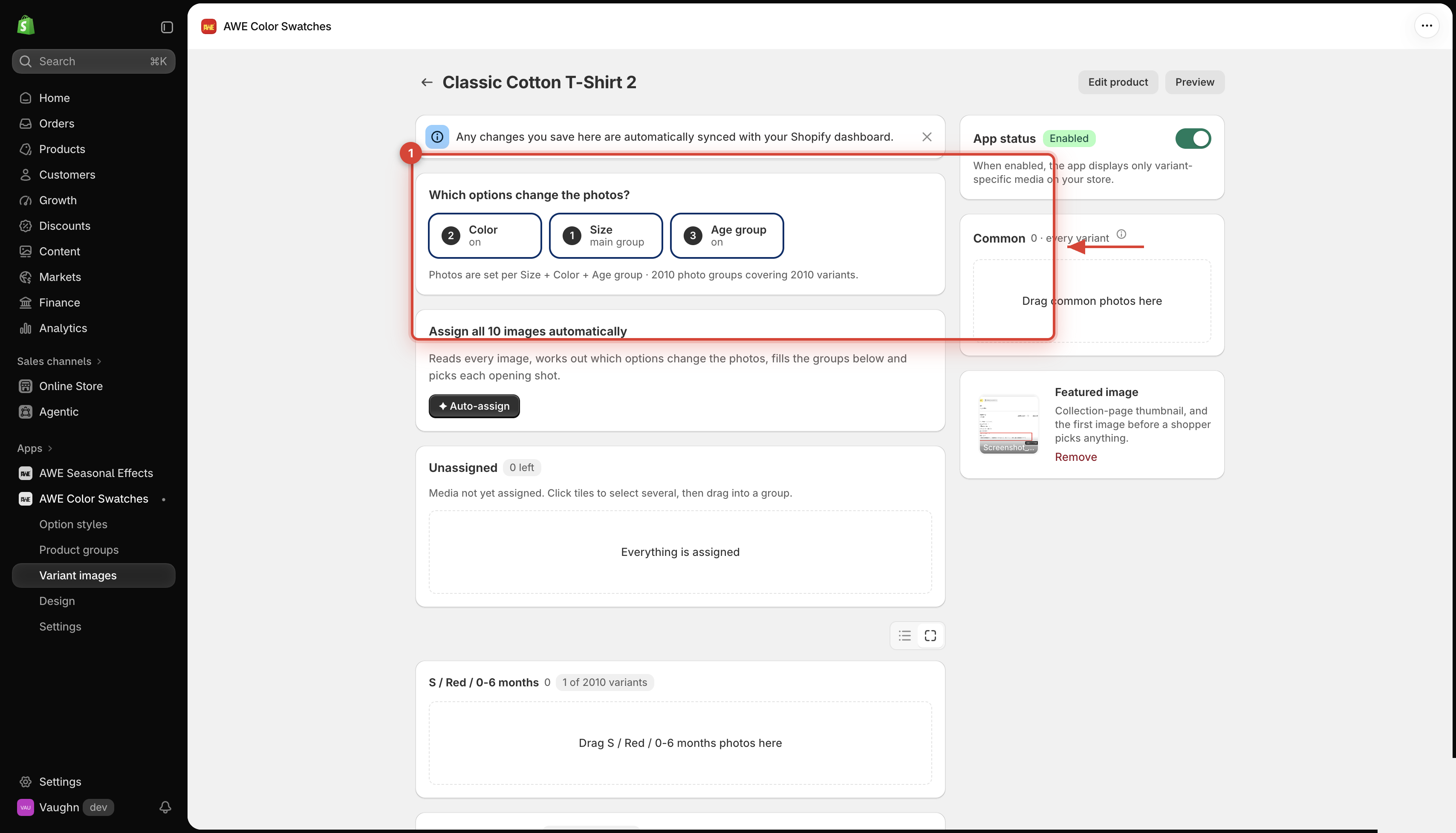
Under **Which options change the photos?**, click the option — usually **Color**. It becomes the **main group**: one photo group per value. You can turn on up to 3 options.
{% endstep %}
{% step %}
### Move photos into groups
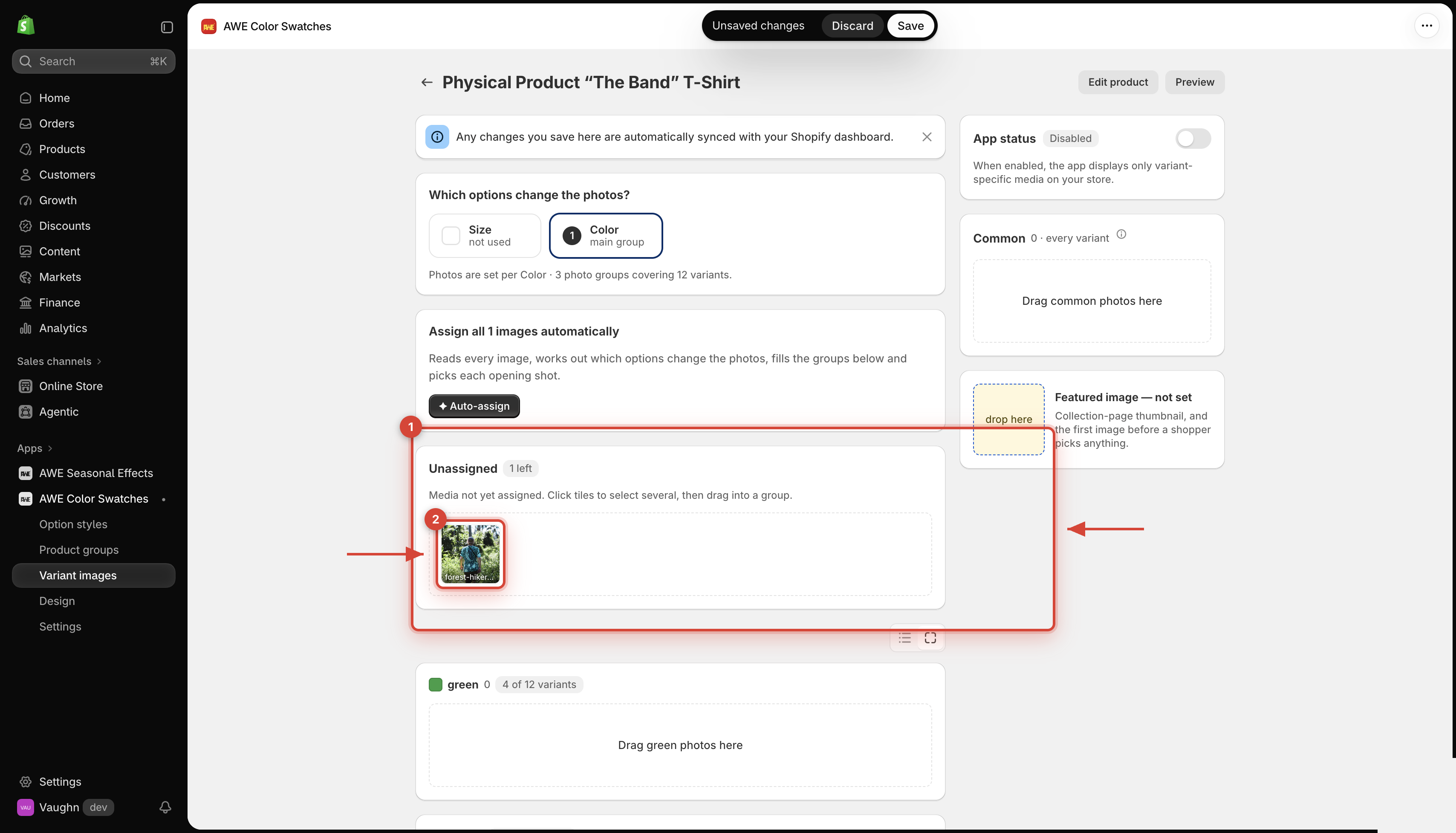
Click photos in **Unassigned** to select them, then drag them into a group — or use **Move to** in the bar at the bottom. Each photo sits in one place at a time.
1. Unassigned area. 2. A photo waiting to be moved.
{% endstep %}
{% step %}
### Add common photos
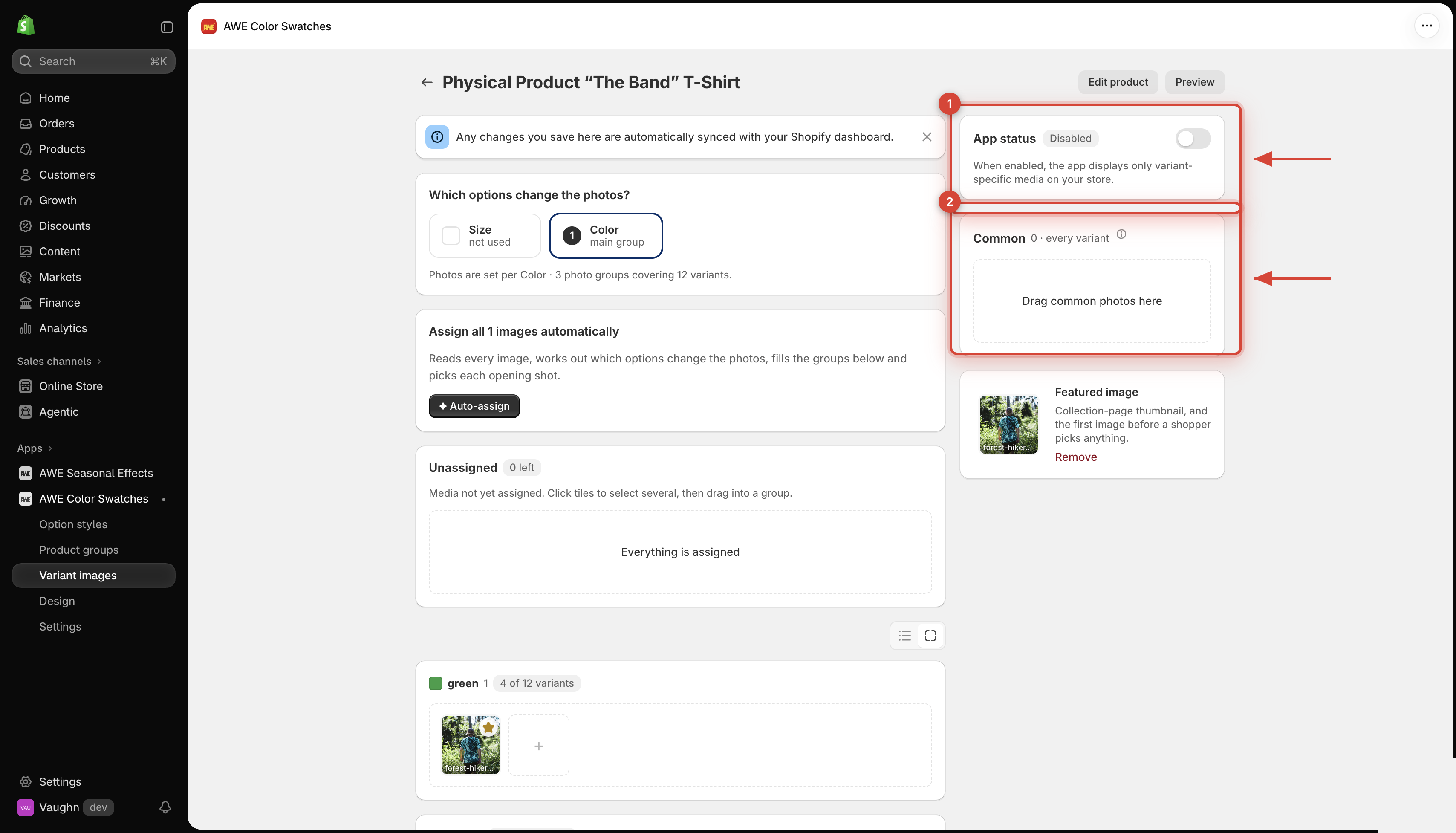
Drag photos that apply to every variant — size guide, packaging, lifestyle shots — into **Common**.
{% endstep %}
{% step %}
### Pick the opening shot
Click the star on a photo to show it first when a shopper picks that value.
{% endstep %}
{% step %}
### Turn it on and save
Switch on **App status** in the right column, then click **Save** in the save bar.
1. App status switch. 2. Common photos shown for every variant.
{% endstep %}
{% endstepper %}
## Good to know
* **Featured image** is the first photo shoppers see before they pick a variant.
* **Compact view** / **Detailed view** switches how big the photo tiles are.
* **Edit product** opens the product in Shopify — save or discard your changes here first.
* **Preview** opens the product on your store.
* A group holds up to 250 photos, and so does **Common**.
→ *Photos still in **Unassigned** are hidden on your store while the product is on — the badge shows how many are left.*
***
💬 If you have any related questions, please contact us via **Live chat** in the app.