> For the complete documentation index, see [llms.txt](https://awecommerce.gitbook.io/awe-color-swatches/llms.txt). Markdown versions of documentation pages are available by appending `.md` to page URLs; this page is available as [Markdown](https://awecommerce.gitbook.io/awe-color-swatches/getting-started/variant-images.md).
# Variant images
Show shoppers only the photos that match their selected variant.
Show shoppers only the photos that match the variant they picked. Choose **Red**, and the gallery shows the red photos — plus any photos that apply to every variant, like a size guide.
To get started:\
Go to **Variant images** in the app menu.
***
## 1. **How it works**
For each product, you sort its photos into **photo groups** — one per value of the option that changes the photos (usually **Color**).
Photo groups
One per value, e.g. Red, Blue. A group can hold many photos.
Common
Photos shown for every variant, after its own photos — size guide, packaging, lifestyle shots.
Unassigned
Photos not in any group. They're hidden on your store while variant images is on.
{% hint style="info" %}
The app doesn't change your product media in Shopify — it only decides which photos the gallery shows. Videos and 3D models are not included.
{% endhint %}
## 2. **The product list**
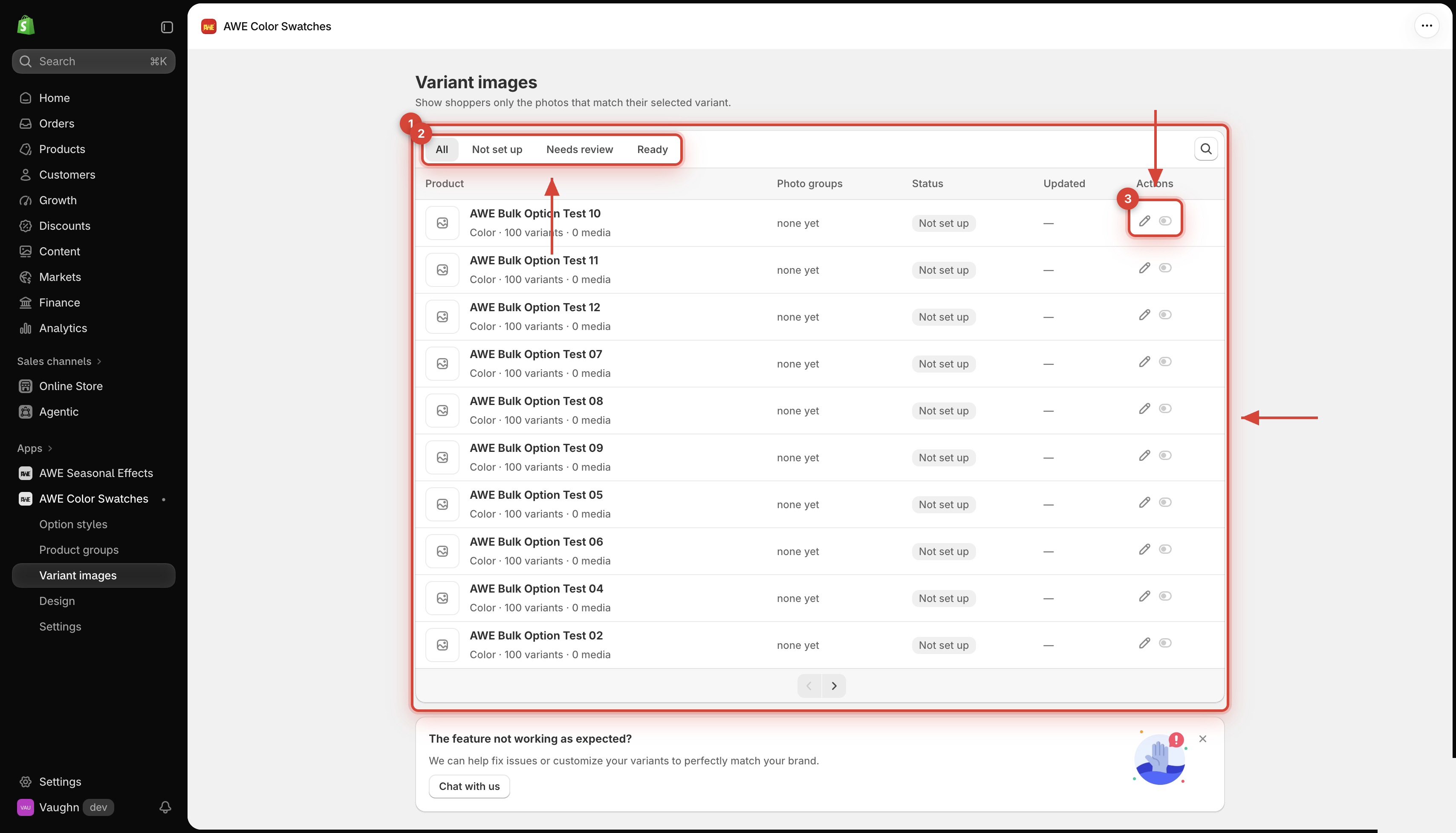
Every product in your store is listed with its photo groups, status and last update. Use the tabs **All**, **Not set up**, **Needs review** and **Ready**, or **Search products**.
1. Product list. 2. Status filters and search. 3. Edit and App status actions.
Click the **pencil** to set up or review a product. The **App status** switch stays unavailable until that product has been set up.
## 3. **Guides**
{% content-ref url="/pages/0hJyFDOkHfvFpZjKYTHO" %}
[✦ Auto-assign photos](/awe-color-swatches/getting-started/variant-images/auto-assign-photos.md)
{% endcontent-ref %}
{% content-ref url="/pages/UjUqsvtElFErQjZOHzML" %}
[Set up a product](/awe-color-swatches/getting-started/variant-images/set-up-a-product.md)
{% endcontent-ref %}
{% content-ref url="/pages/o4f0qCZDx5QEzZa26iVV" %}
[Statuses & turning it on](/awe-color-swatches/getting-started/variant-images/statuses-and-turning-it-on.md)
{% endcontent-ref %}
***
💬 If you have any related questions, please contact us via **Live chat** in the app.