> For the complete documentation index, see [llms.txt](https://awecommerce.gitbook.io/awe-color-swatches/llms.txt). Markdown versions of documentation pages are available by appending `.md` to page URLs; this page is available as [Markdown](https://awecommerce.gitbook.io/awe-color-swatches/getting-started/settings.md).
# Settings
Store-wide settings — tooltip, sold-out display, position and custom CSS.
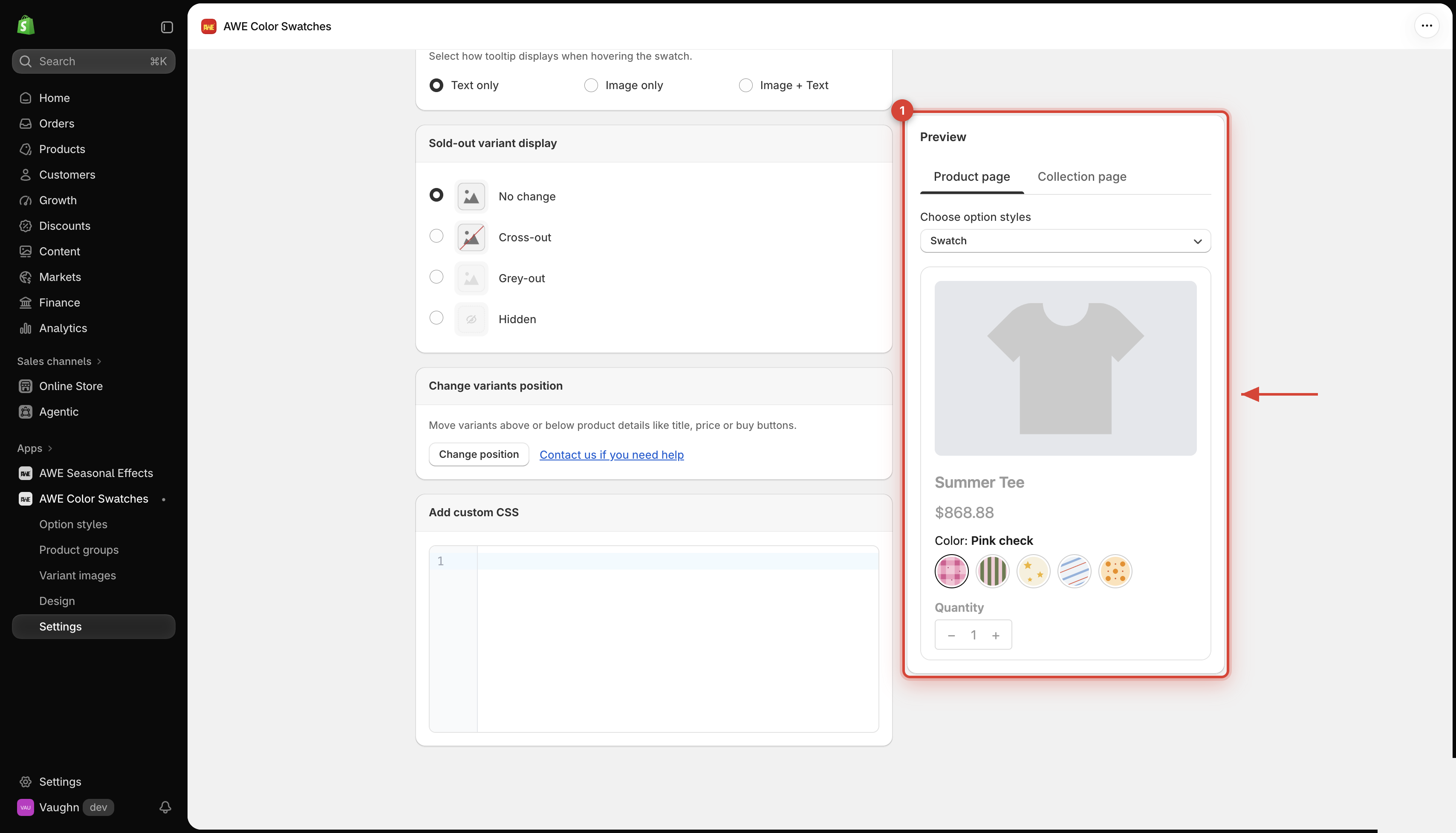
**Settings** apply to every option style and product group in your store. The **Preview** on the right shows your changes before you save. Switch between **Product page** and **Collection page**, then use **Choose option styles** to check each style.
To get started:\
Go to **Settings** in the app menu. Change what you need, then click **Save** in the save bar.
***
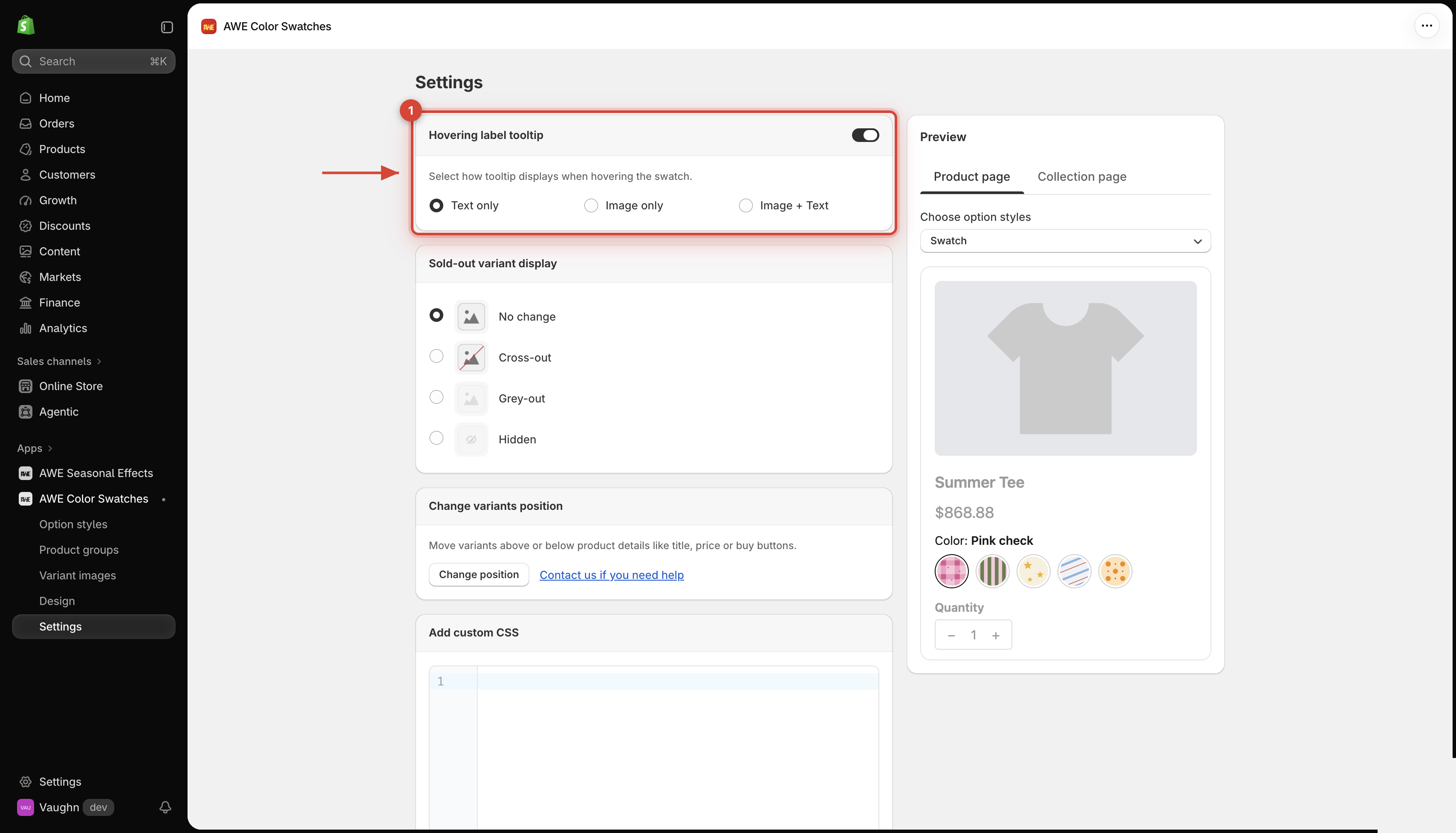
## 1. **Hovering label tooltip**
Shows a small label when a shopper hovers a swatch. On by default. Choose what it shows:
* **Text only** (default) — the value name.
* **Image only** — the swatch picture or color.
* **Image + Text** — both.
→ *Dropdowns don't use tooltips.*
## 2. **Sold-out variant display**
How sold-out values look, on product pages and collection cards:
No change (default)
Sold-out values look like the rest and can still be clicked.
Cross-out
A diagonal line through the value.
Grey-out
The value is faded.
Hidden
Sold-out values are removed.
→ *A value that's only sold out with the current selection stays clickable and switches the other options, just like Shopify's own picker.*
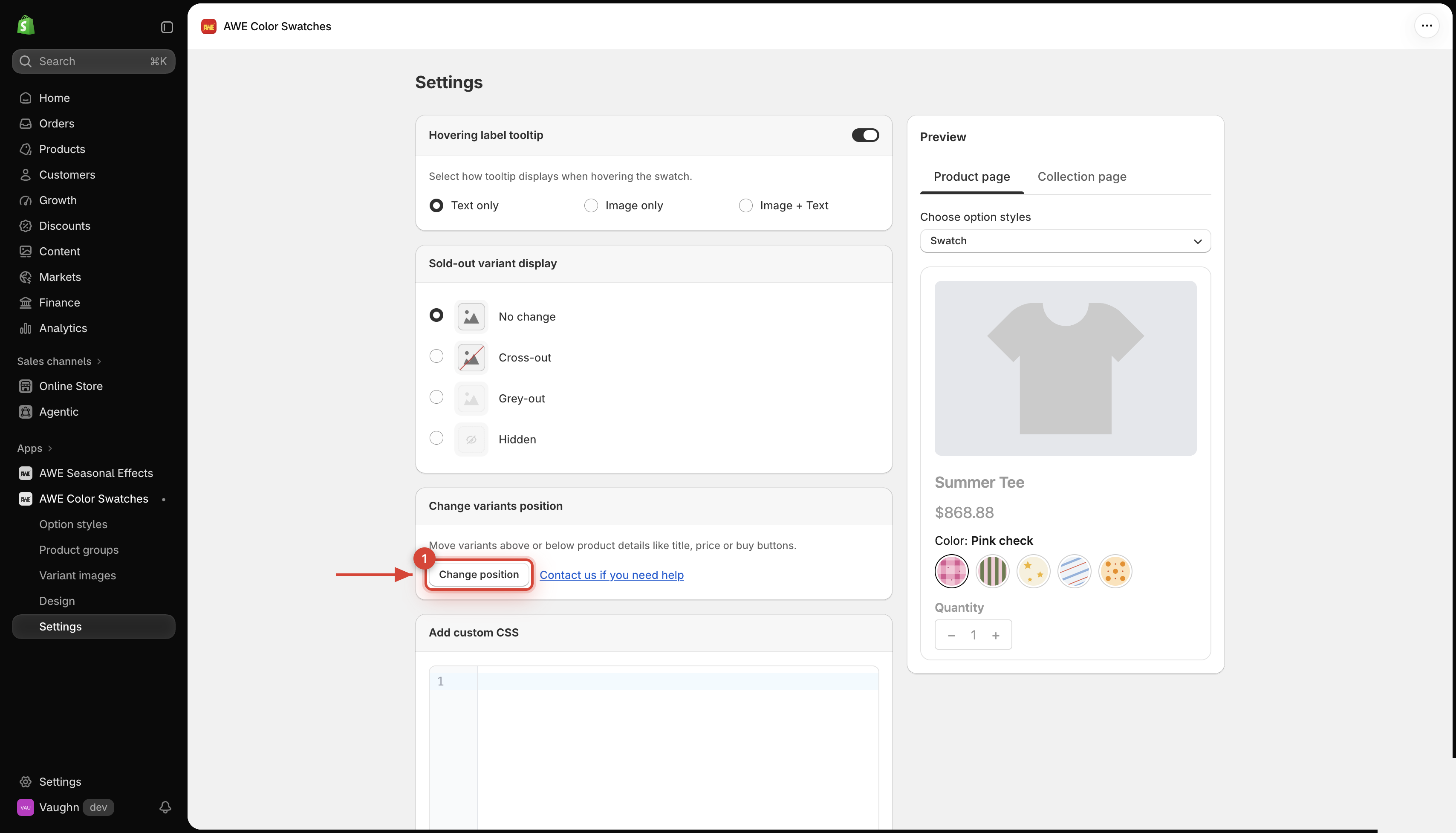
## 3. **Change variants position**
Want the swatches above or below your title, price or buy buttons? Click **Change position** and our team moves them for you.
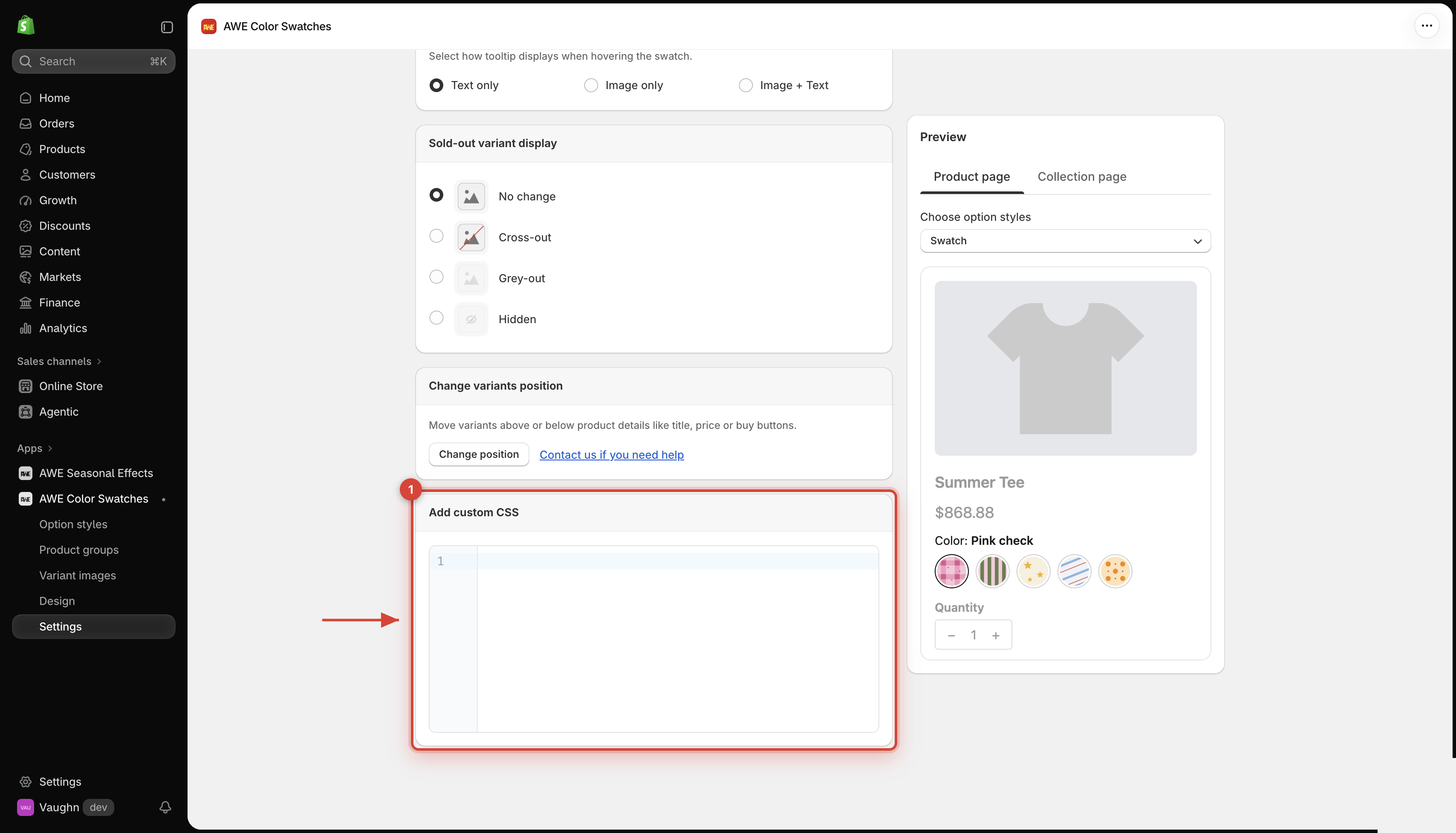
## 4. **Add custom CSS**
Write your own CSS to fine-tune the swatches. It's added to every page of your store while the app embed is on. The app won't save while your CSS has an error.
→ *E.g. hide the option name above the swatches with `.awe-swatch-group__name, .awe-swatch-group__separator { display: none; }`.*
***
💬 If you have any related questions, please contact us via **Live chat** in the app.