> For the complete documentation index, see [llms.txt](https://awecommerce.gitbook.io/awe-color-swatches/llms.txt). Markdown versions of documentation pages are available by appending `.md` to page URLs; this page is available as [Markdown](https://awecommerce.gitbook.io/awe-color-swatches/getting-started/product-groups/create-a-product-group.md).
# Create a product group
Link two or more products as swatches in a few steps.
Link separate products so they show as swatches on each other's pages.
## 🛠️ Steps
{% stepper %}
{% step %}
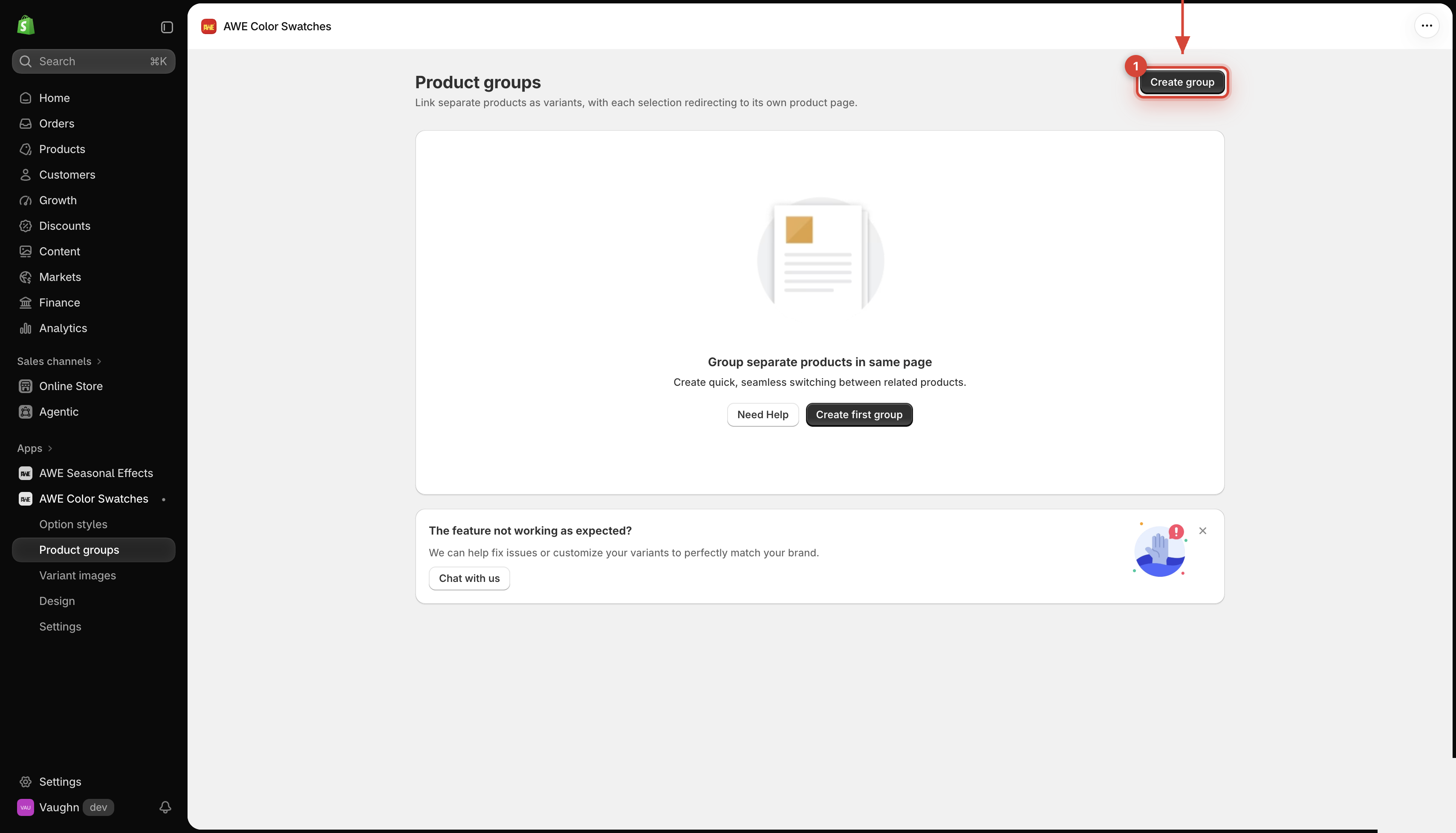
### Open Product groups
Go to **Product groups** and click **Create group**.
{% endstep %}
{% step %}
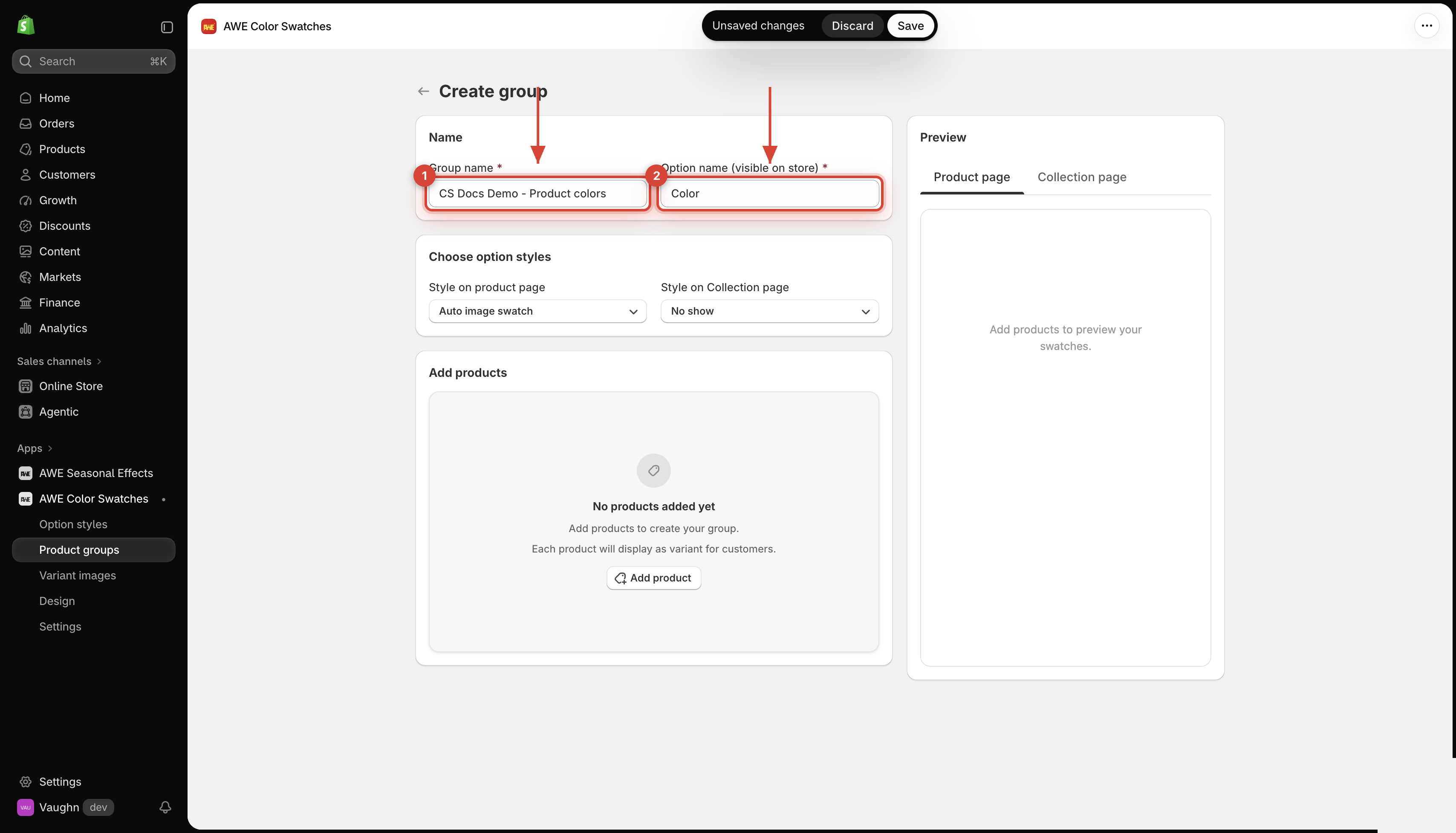
### Name the group
* **Group name** — only for you, to find the group in the app, e.g. `Classic tee colors`.
* **Option name (visible on store)** — the label shoppers see above the swatches, e.g. `Color`.
{% endstep %}
{% step %}
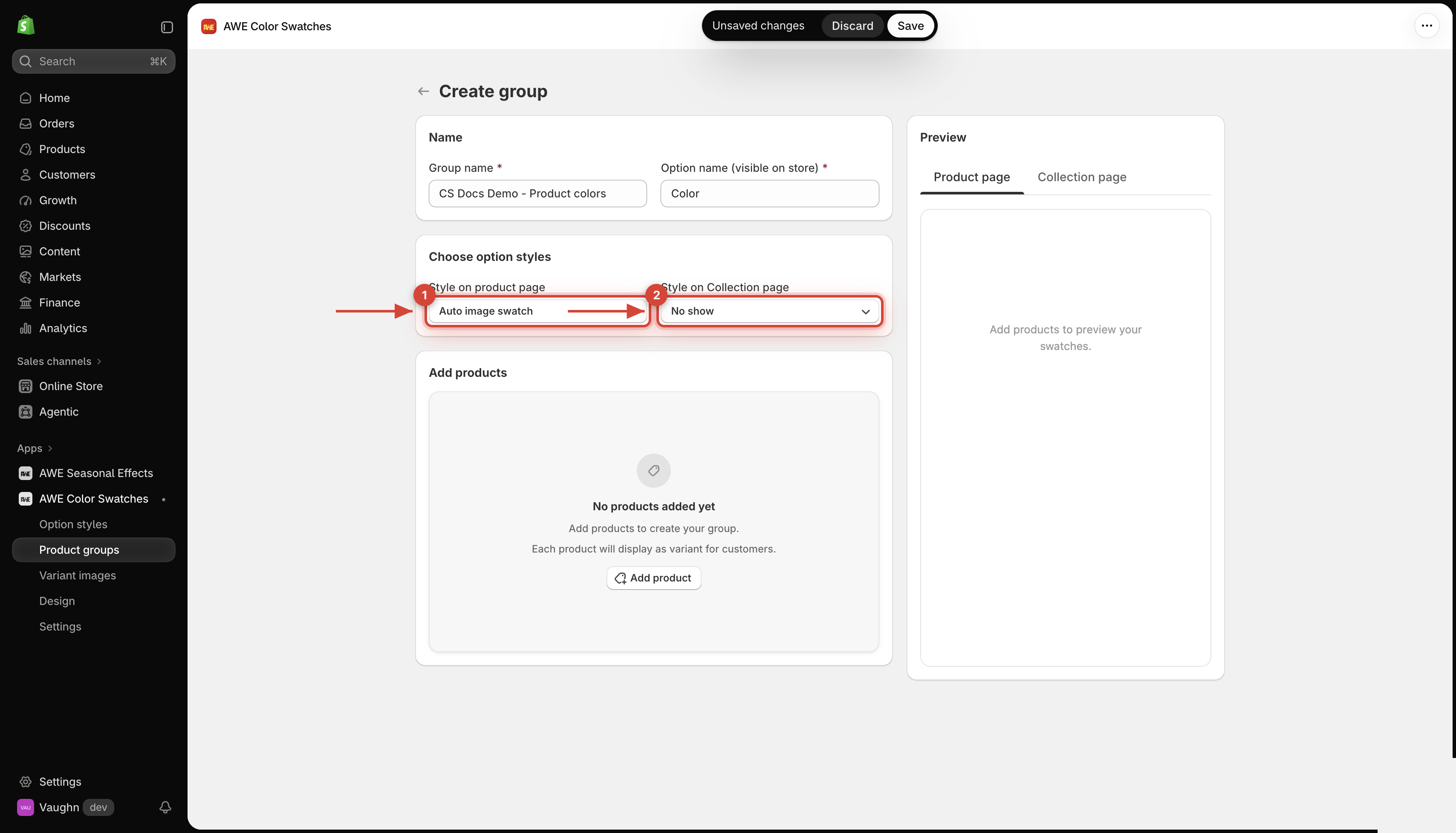
### Choose option styles
* **Style on product page** — default **Auto image swatch** (each product's featured image).
* **Style on Collection page** — default **No show**, so new groups stay off collection cards until you change it.
→ *Picked **Custom swatch** or **Custom card**? Click the gear icon to set a color or image for each product — or **Auto-assign colors** to fill them from the product names.*
{% endstep %}
{% step %}
### Add products
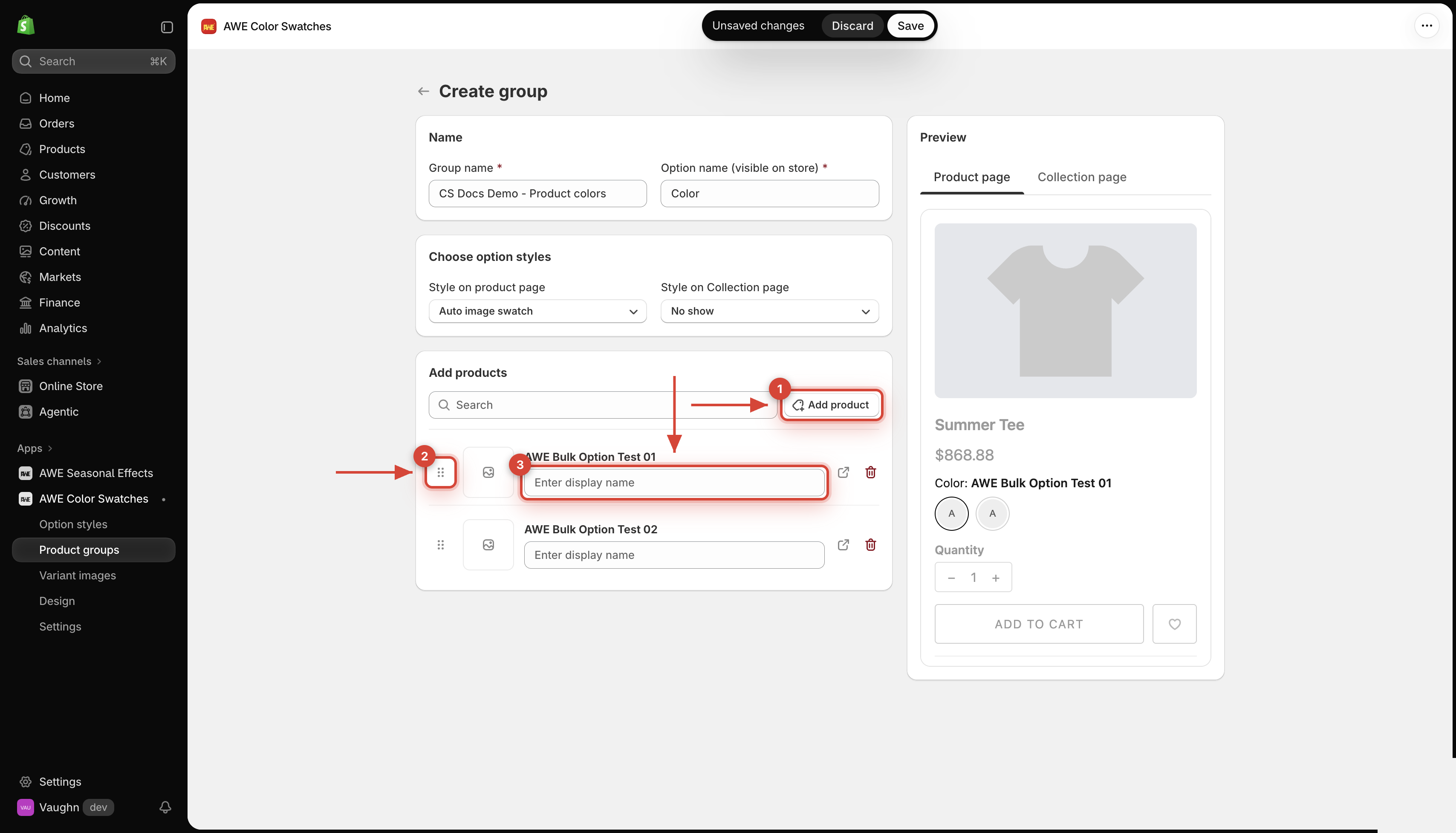
Click **Add product** and pick the products to link. A group needs **at least 2 products**.
1. Add products. 2. Drag to reorder. 3. Set an optional display name.
* Drag the handle to reorder — that's the order of the swatches.
* **Display name** — the text shown for that swatch. Leave it empty to use the product title.
{% endstep %}
{% step %}
### Save
Click **Save** in the save bar at the top. The group is **Active** right away.
{% endstep %}
{% endstepper %}
## What shoppers see
* Every product in the group shows the group's swatches, in your order. Clicking one opens that product's page.
* Products that aren't published on your Online Store are left out.
* On collection cards, the swatches show only if **Style on Collection page** isn't **No show**.
{% hint style="info" %}
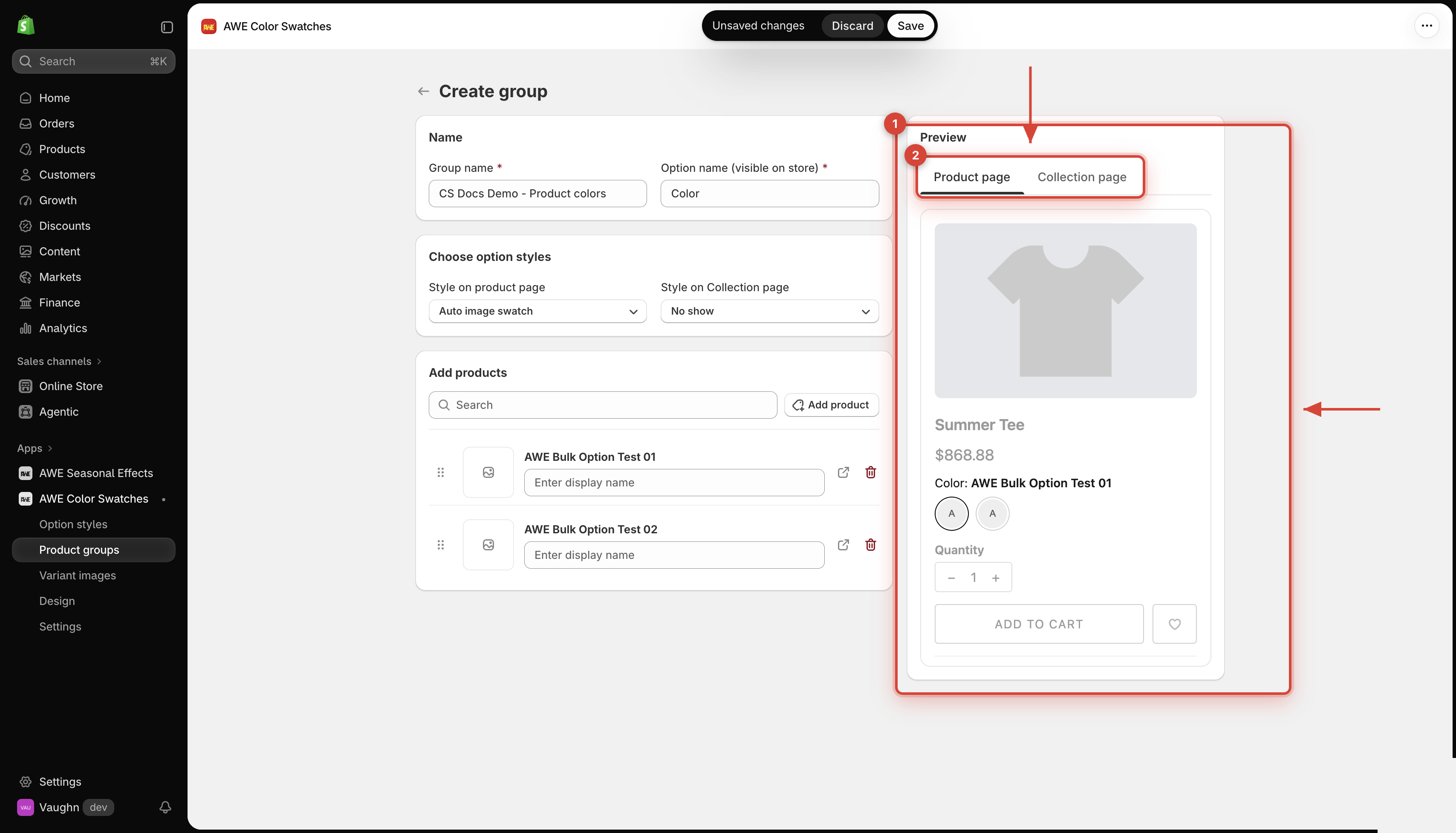
The **Preview** on the right shows the group on a product page and a collection page before you save.
{% endhint %}
→ *Want the swatches somewhere else on the page? See* [*Reposition swatches on the product page*](/awe-color-swatches/getting-started/product-groups/reposition-swatches.md)*.*
***
💬 If you have any related questions, please contact us via **Live chat** in the app.