> For the complete documentation index, see [llms.txt](https://awecommerce.gitbook.io/awe-color-swatches/llms.txt). Markdown versions of documentation pages are available by appending `.md` to page URLs; this page is available as [Markdown](https://awecommerce.gitbook.io/awe-color-swatches/getting-started/option-styles.md).
# Option styles
Choose how each product option shows on product pages and collection cards.
**Option styles** is where you turn each product option — **Color**, **Size**, **Material**… — into swatches.
To get started:\
Go to **Option styles** in the app menu.
***
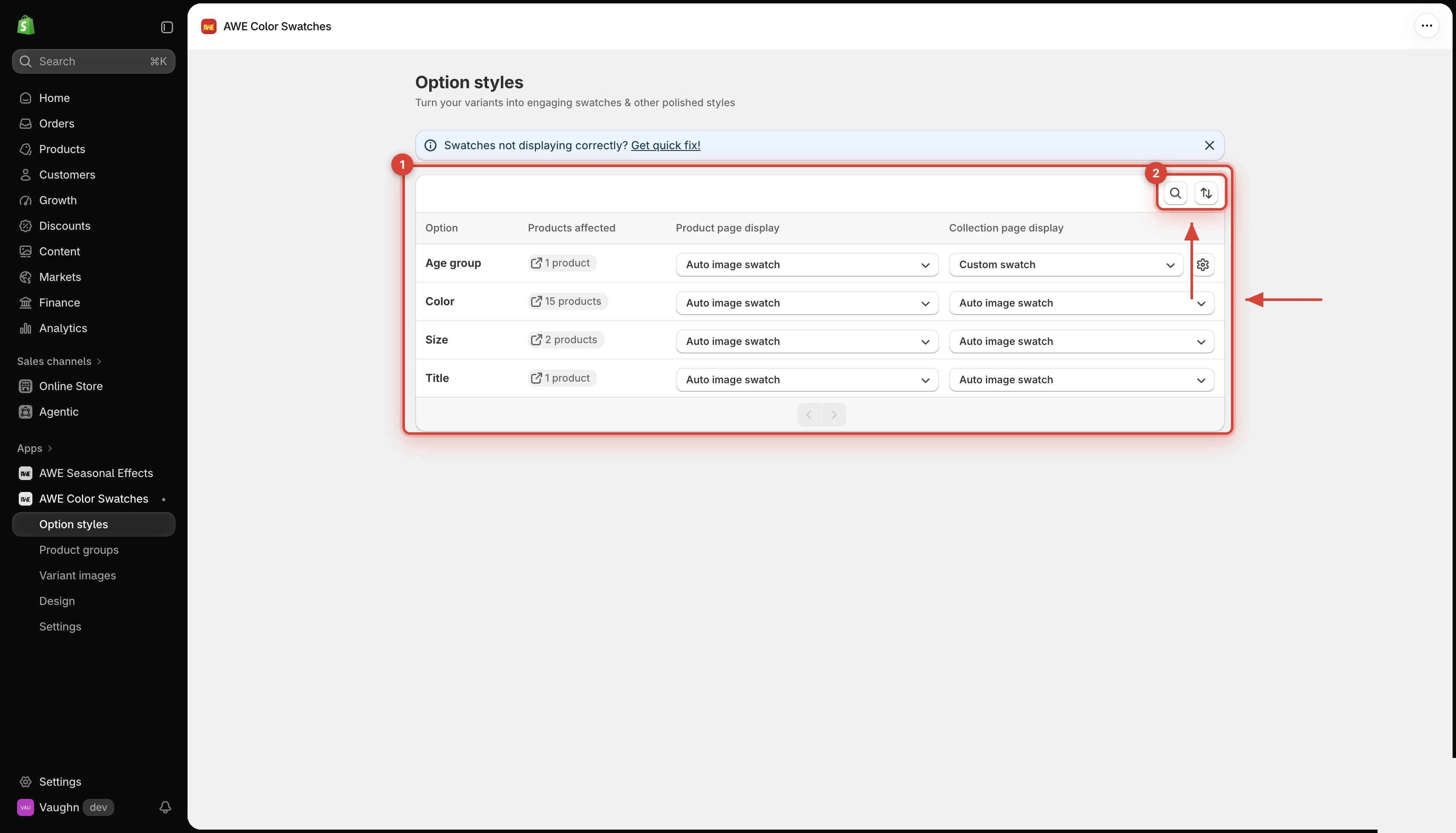
## 1. **The option list**
The app lists every option your products use, **once per option name**. New options appear by themselves when you add products.
1. Option list and display styles. 2. Search and sort controls.
Option
The option name, for example Color or Size.
Products affected
How many products use it. Click the badge to see them, with a Preview on Online Store link.
Product page display
The style on product pages. Default: Auto image swatch.
Collection page display
The style on product cards (collections, search, home page). Default: No show.
→ *Use **Search option name** and the sort menu to find an option quickly. The list shows 10 options per page.*
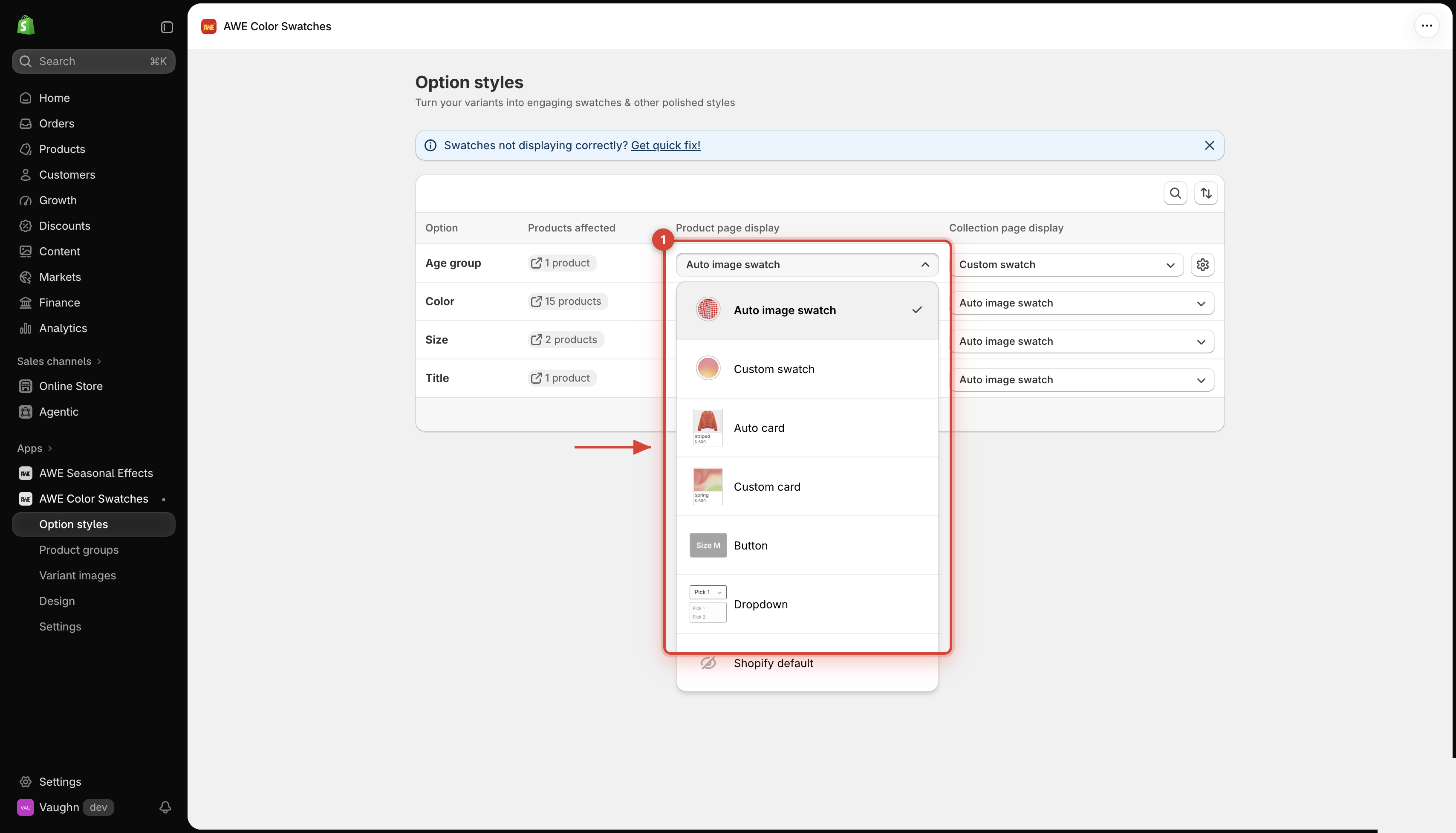
## 2. **Change a style**
1. Pick a style from the option's **Product page display** or **Collection page display** dropdown.
2. Change as many options as you like.
3. Click **Save** in the save bar at the top.
→ *The style applies to every product with that option. "Red" in **Color** looks the same on all your products.*
## 3. **Learn more**
{% content-ref url="/pages/WZFWLJRla3YcBJ7jwAqV" %}
[Swatch styles explained](/awe-color-swatches/getting-started/option-styles/swatch-styles.md)
{% endcontent-ref %}
{% content-ref url="/pages/XHqGghgHKNMrNxPb4Clh" %}
[Custom colors & images](/awe-color-swatches/getting-started/option-styles/custom-colors-and-images.md)
{% endcontent-ref %}
***
💬 If you have any related questions, please contact us via **Live chat** in the app.